
- Monitor active operations in real-time.
- Track operation history from the past 14 days.
- Identify and troubleshoot failed processes.
The Task Manager maintains a visible history of all operations performed in the past 14 days. Older tasks are automatically archived.
Accessing the Task Manager
The Task Manager is available from any screen in Visual Layer.- Go to the Navigation Panel on the left side of the screen.
- Click the Task Manager icon
 .
.
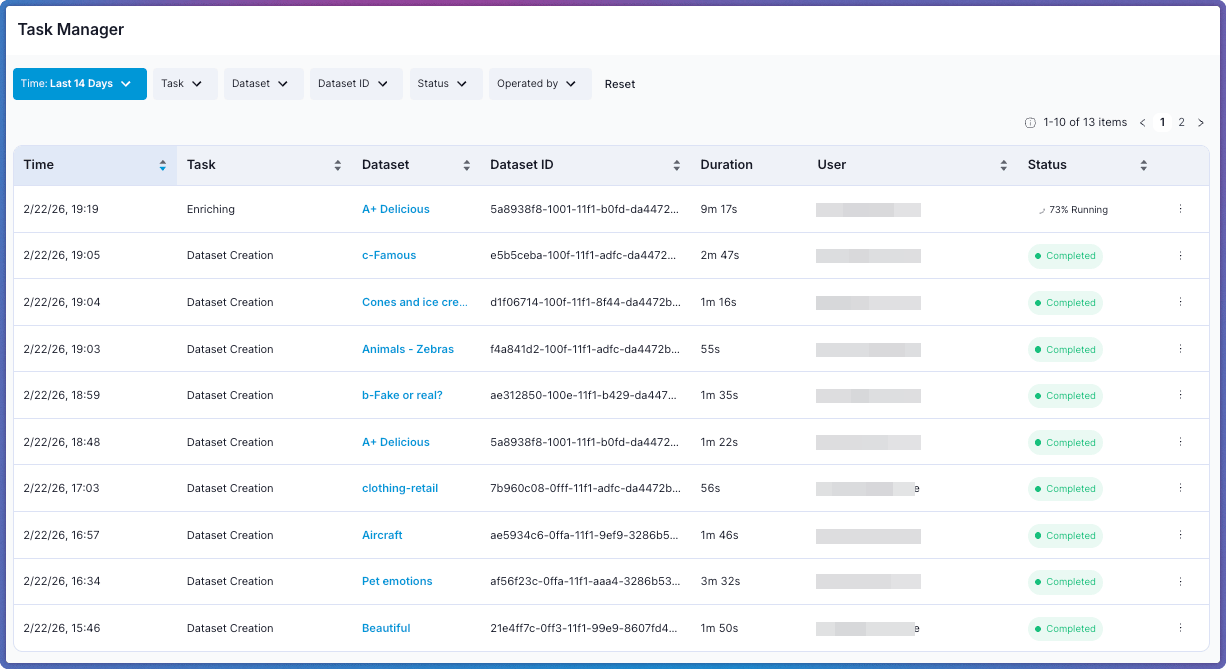
If no operations have been performed in the past 14 days, the table appears empty with a notification indicating no recent activity.
Understanding the Task Table
The Task Manager displays all operations in a table format. Each row represents a single task and contains the following information:The Task Manager tracks operation-level status independently from overall dataset status. A dataset can show Ready status in the Dataset Inventory even when the Task Manager displays completed tasks like Enrichment or Training, since these operations do not block dataset access.
Working with the Task Table
The table displays tasks ordered by Time by default, with the most recent operations appearing first. Click any column header to sort tasks in ascending or descending order.Filtering Tasks
The filter bar at the top of the table narrows the task list by multiple criteria.Sorting Tasks
Click any column header to sort tasks in ascending or descending order:- Duration: Identify long-running or slow operations.
- Time: View operations chronologically.
- Dataset: Group tasks by dataset.
Retrieving Task IDs
Task IDs are useful when contacting Visual Layer support about specific operations.- Click the Actions menu (three dots) for the relevant task row.
- Select Copy Task ID.
Task Statuses
All tasks display one of the following statuses to indicate their current state. Each status includes a percentage to show progress through the operation.Task Types
Each entry in the Task column represents one of the following operations:Task Concurrency
When a data-modifying task runs, the dataset enters Read Only status and other data-modifying tasks are blocked until the current task completes.Model Training and Model Validation tasks do not restrict dataset access. The dataset remains Ready while these tasks run.
Monitoring Active Operations
The Task Manager updates automatically as tasks progress. Active operations display real-time updates:- Progress percentage increases as the task advances.
- Duration counts up continuously for running tasks.
- Status changes reflect task state transitions.
Troubleshooting Failed Tasks
When a task shows Failed status:- Hover over the status or click the task row to view error details.
- Review the error message for specific failure reasons.
- Common issues include:
- Insufficient storage space.
- Invalid metadata formats.
- Network connectivity problems.
- Incompatible file types.
- After resolving the issue, retry the operation from the relevant dataset or workflow.
Failed dataset creation tasks require starting the creation process again. Failed enrichment tasks can be retried from the enrichment panel for that dataset.
Task Manager Limitations
Keep the following constraints in mind when working with the Task Manager:- 14-Day History Window: The Task Manager only displays operations from the past 14 days. Older tasks are automatically archived.
- Read-Only Interface: You cannot cancel or modify most running tasks directly from the Task Manager. To stop an operation, navigate to the dataset and use the relevant controls. Dataset creation tasks can be aborted and retried via the Task Manager API.
- No Bulk Actions: Each task must be reviewed or managed individually.
Related Resources
Upload Data
Create datasets and monitor creation tasks.
Dataset Enrichment
Enrich datasets and track enrichment tasks.
Dataset Snapshots
Track snapshot restore and clone operations in the Task Manager.
Task Manager API
List, abort, and retry tasks programmatically.